Getting Started
Software Compatibility
To check the software versions for the robot control software, AI software, and GUI (Graphical User Interface) software, follow these steps:
Robot Control Software Version: Click the “Info” button located in the upper-right corner of the screen.
Documentation Version: To select the corresponding version of this documentation, click on the version control dropdown at the bottom of the black navigation bar on the left side of the screen.
Version Table: To make it easier to understand, here’s a version compatibility table for the different software components:
AI-Version |
S/W-Version (Control Software) |
GUI-Version |
|---|---|---|
3.0.0 |
4.17.0 |
1.0.0 |
3.1.0 |
4.19.0 |
2.11.1 |
3.2.0 |
4.21.1 |
2.13.2 |
3.3.0 |
5.1.0 |
3.1.0 |
Minimal System Requirements
To ensure optimal performance, the following system requirements are recommended:
Hard Drive Space: 50GB
RAM: 8GB
Processor: Intel i5 or amd RYZEN 5 or better
SDK Installation
The NeuraAISDK consists of the NeuraPy AI API, which contains clients to the cognitive capabilities of the robot and commonly used utilities in robotics software development.
The SDK installation also sets up an external device to connect to the robot network and access the robot learning hub, referred to as AI Hub.
Furthermore, the SDK contains several URDF models of Neura Robotics robots, some combinations of robot assemblies that could help developers access the kinematics and use them to build applications.
ROS1 tools could be alse used to visualize the robot kinematics, stream sensor data and could prove useful for offline application development.
Important
SDK installation assures connection to robot network to access and use AI Hub.
The NeuraAISDK consists of the NeuraPy AI API, which contains clients to the cognitive capabilities of the robot and commonly used utilities in robotics software development.
The SDK installation also sets up an external device to connect to the robot network and access the robot learning hub, referred to as AI Hub.
Furthermore, the SDK contains several URDF models of Neura Robotics robots, some combinations of robot assemblies that could help developers access the kinematics and use them to build applications.
ROS1 tools can be used to visualize robot kinematics, stream sensor data, and support offline application development through simulation and recorded data.
Important
SDK installation assures connection to robot network to access and use AI Hub.
Important
NeuraPy AI API requires Ubuntu 20.04.
Prerequisites
Ensure the following environment is set up before proceeding:
Ubuntu 20.04 OS/docker environment with administrative (
sudo) user rights.Internet connection on the device.
Connect your device to the robot network with an Ethernet cable to the service port on the control box.
Install NeuraPy
Chromium browser: Chromium.
Install NeuraAISDK and dependencies
Download the NeuraAISDK package from the Neura PartnerHub. Take note to get the correct compatible SDK version that matches the software version of your robot, see Software Compatibility.
Extract the NeuraAISDK folder and run the installation script:
cd <path_to_extracted_folder>
./install_neura_ai_sdk.sh
Several installation steps would be listed, it’s recommended to choose
Option 99to install everything needed in the correct order.Please select the installation type 1. Install ROS 2. Setup network and file sharing 3. Install NeuraPy AI SDK Dependencies 4. Install NeuraPy AI SDK 5. Setup catkin workspace and ROS environment variables 6. Install NeuraPy AI API Documentation 99.Install (ROS + Setup NFS + NeuraPy AI SDK)
Notes
The installation script sets up the static IP address for your device to access the robot network.
Follow the instructions carefully to avoid installation issues.
If you already have ROS installed, you may skip the ROS installation step.
If your robot connects to a different Ethernet port on your device, rerun the installation and choose Option 2 to reconfigure your static IPs.
You can open the documentation in your browser by running the following command,
neurapy_ai_api_docs
Connect to Robot
To use Neura OS APIs, you need to connect an external PC to the robots computer via Ethernet.
Note
During the neurapy_ai_sdk_installation the static IP for the Ethernet is set automatically.
Connect the external PC via Ethernet cable with the robot’s control box.
On your external PC navigate to the SDK folder. Run the following command and select option 6 when prompted.
. install_neura_ai_sdk.sh
Taskmanager
The Neura taskmanager provides an overview of all processes running on the robot. It allows you to start processes as a root user, monitor their status, view the log files and stop them when needed.
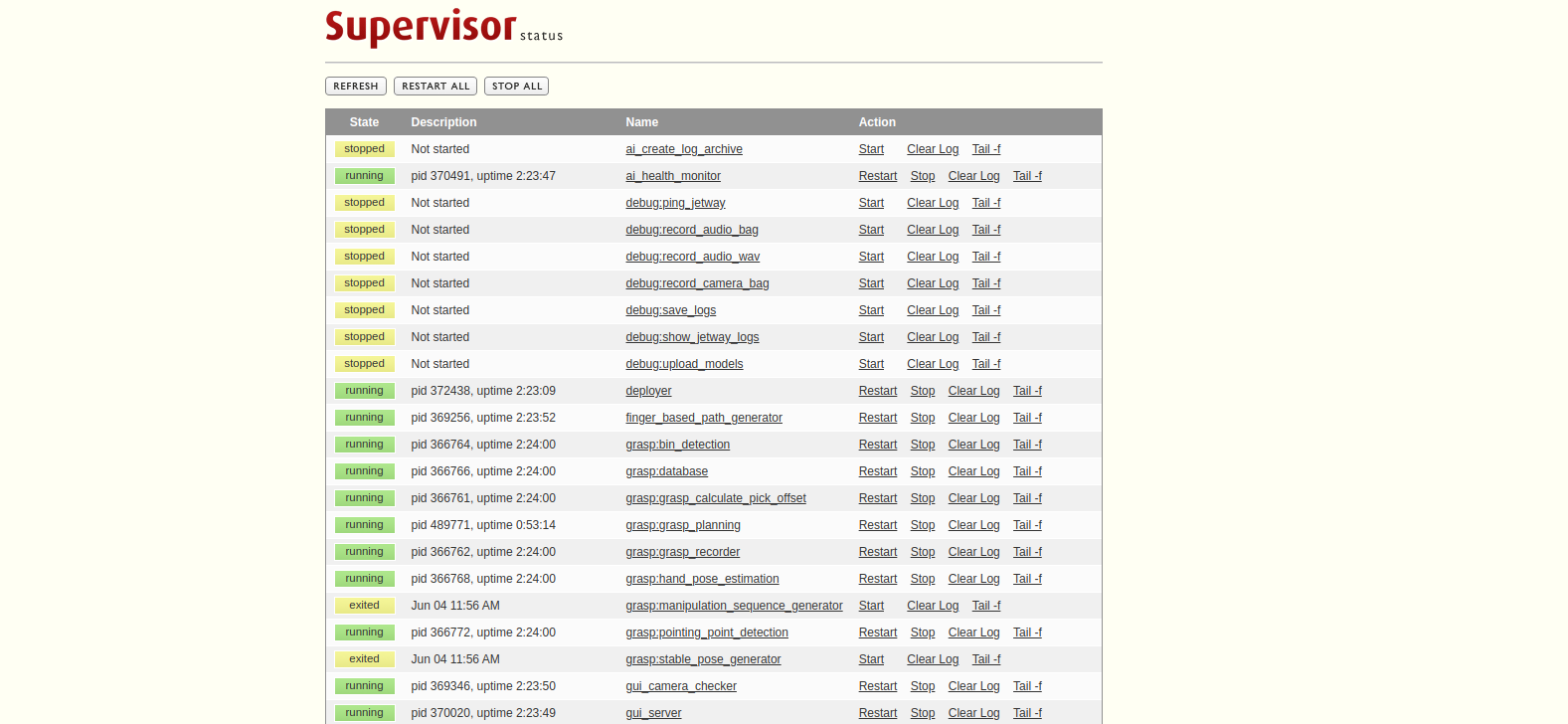
You can access the Neura taskmanager using the following URL on the robot:
http://localhost:9001
If accessing from an external PC connected to the robot, use the actual IP address of the robot:
http://192.168.2.14:9001