Data Management
Data Management Sub-Tab
In the sub-tab, you have full control over your mesh models, datasets, and trained AI models. This section allows you to efficiently organize and manage your assets by providing options to list, search, inspect, rename, and delete them as needed.
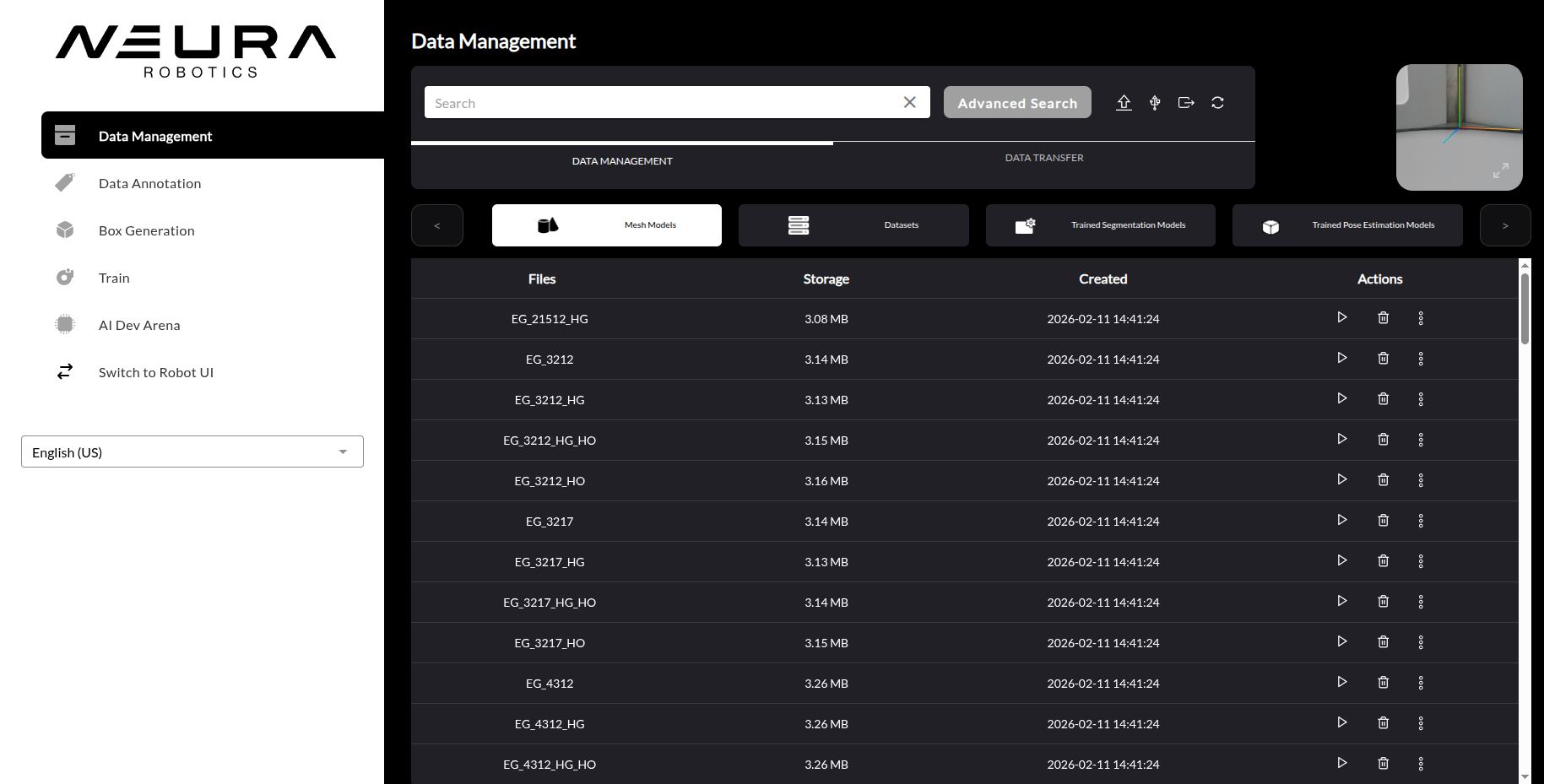
Mesh Models
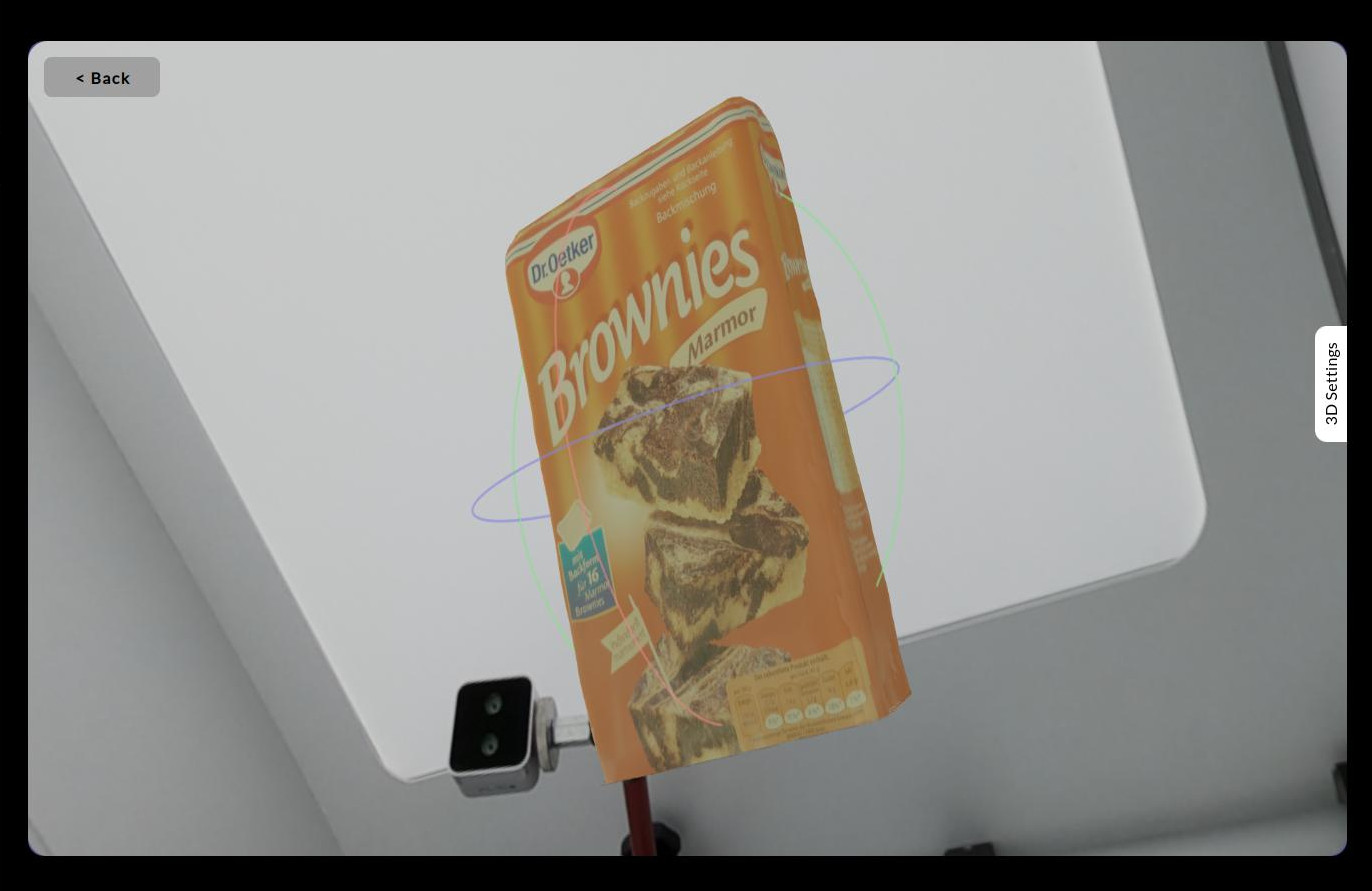
All objects in the database are displayed in , along with their file name, size and creation date. Using the actions on the right, you can either preview, delete or rename an object. Click the Play button to preview the 3D object.
Datasets
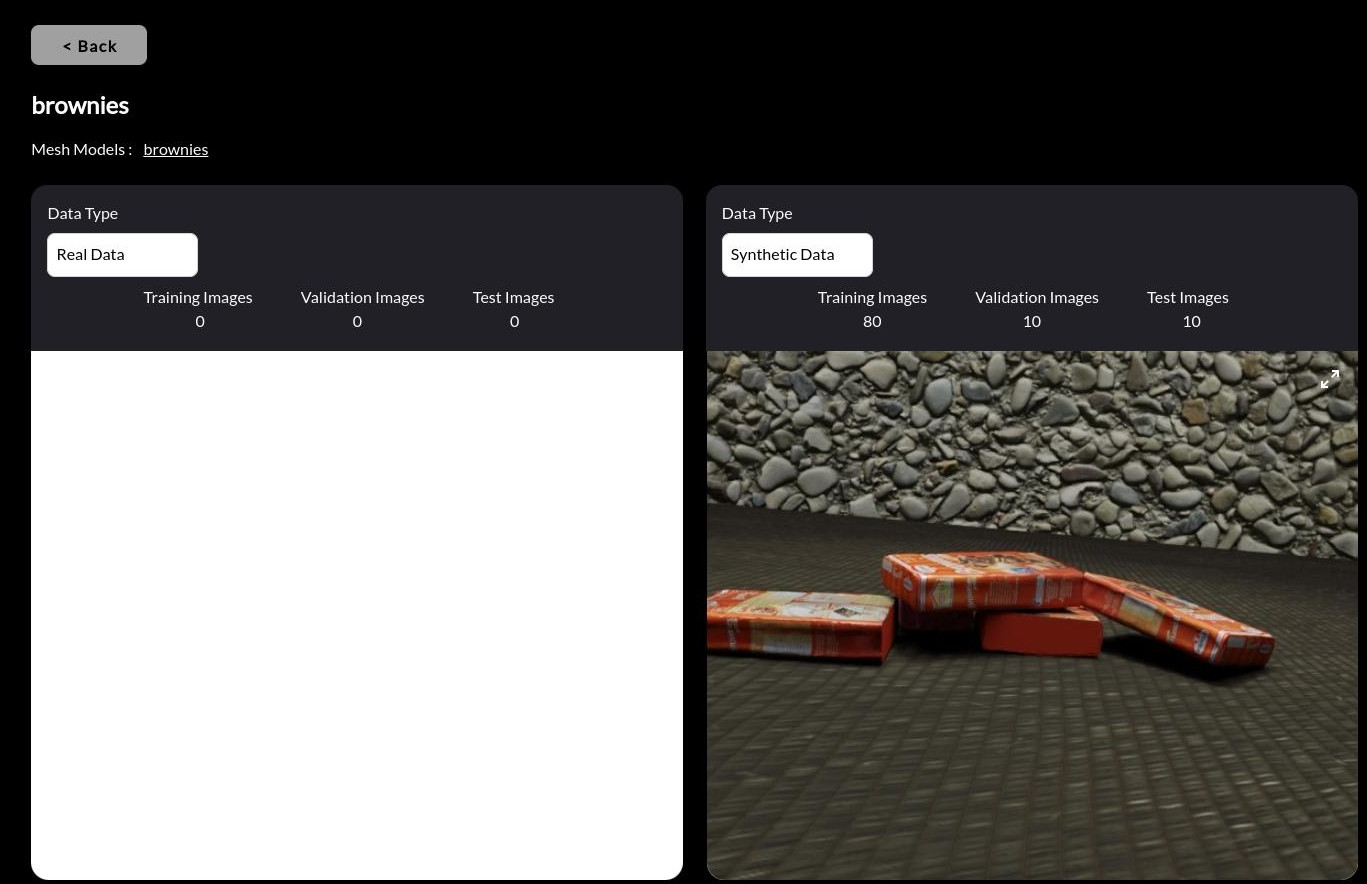
In the section, the datasets available can be managed. Click the Play button on the right to get detailed information about the dataset. E.g., object class names, dataset split sizes and a sample image from each data type are displayed.
AI Models
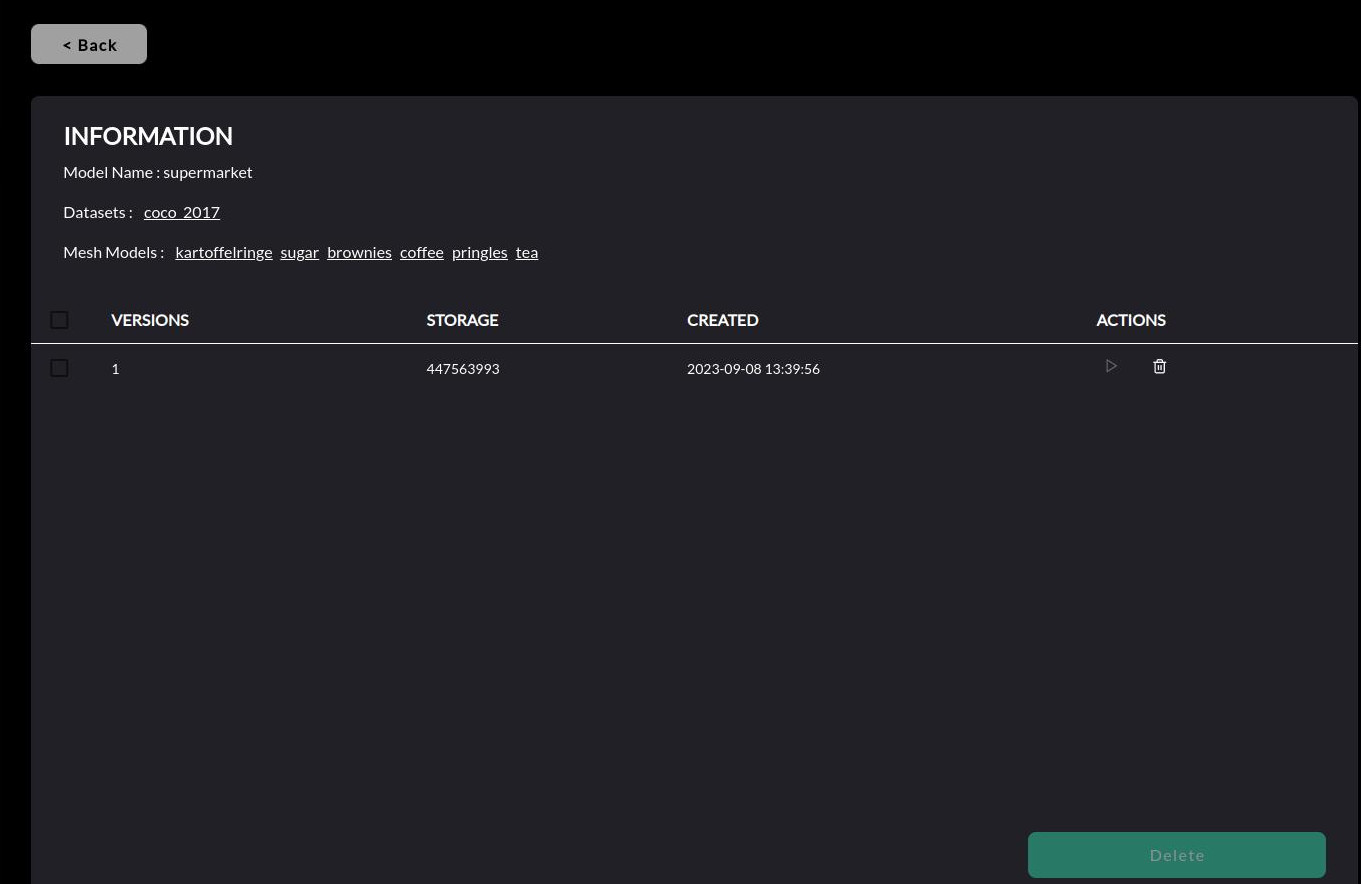
Manage pre-trained models and it’s versions in the and sections. Click on the Extend button on the right to get detailed information on the model, e.g., datasets used to train it, objects it can detect etc.
Hint
A new version of an existing model becomes available when a new model with the similar name, dataset(s) and object(s) is trained.
Data Transfer Sub-Tab
The sub-tab allows you to upload custom object meshes and bin meshes to the database from an external drive. The transfer pipeline would extract key attributes of objects within the uploaded mesh file(s), process them, and store them in the database for various tasks across the lifecycle of a robot application.
Note
Mesh model file requirements
Requirement |
Description |
Action to take if requirement is not met |
|---|---|---|
File name |
Match the object name to the mesh file name or the zip file name if the mesh is zipped in a directory. |
None |
Extension |
The mesh file extension is either |
Convert the file to |
Format |
The mesh file format is ASCII |
Export the file as ASCII format using an open-source tool like Blender or MeshLab |
Scale |
The mesh is scaled into millimeters |
None |
Completeness |
All faces are triangulated |
Triangulate the mesh using an open-source tool like Blender or MeshLab |
Axes |
The object is aligned w.r.t. principal axes, with Z-direction pointing upwards |
None |
Texture |
Texture is provided as |
None |
Color information |
Color information is stored in vertices not faces of the mesh |
Transfer color information from face to vertex using an open-source tool like Blender or MeshLab |
Bins Shape |
Rectangular-shaped |
None |
Bins Orientation |
Opening is pointing in +Z direction |
None |