Generate Synthetic Dataset
This is how you can generate a synthetic dataset using AI Hub. Find more detailed information about generating data with the AI Hub here.
Hint
Ensure the object mesh model is registered in the database before generating a dataset. See Tutorial: Upload A Mesh Model for more details on uploading an externally sourced mesh model.
Using an external PC, access Maira GUI at http://192.168.2.14:8080 and switch to AI Hub Mode.
Click .
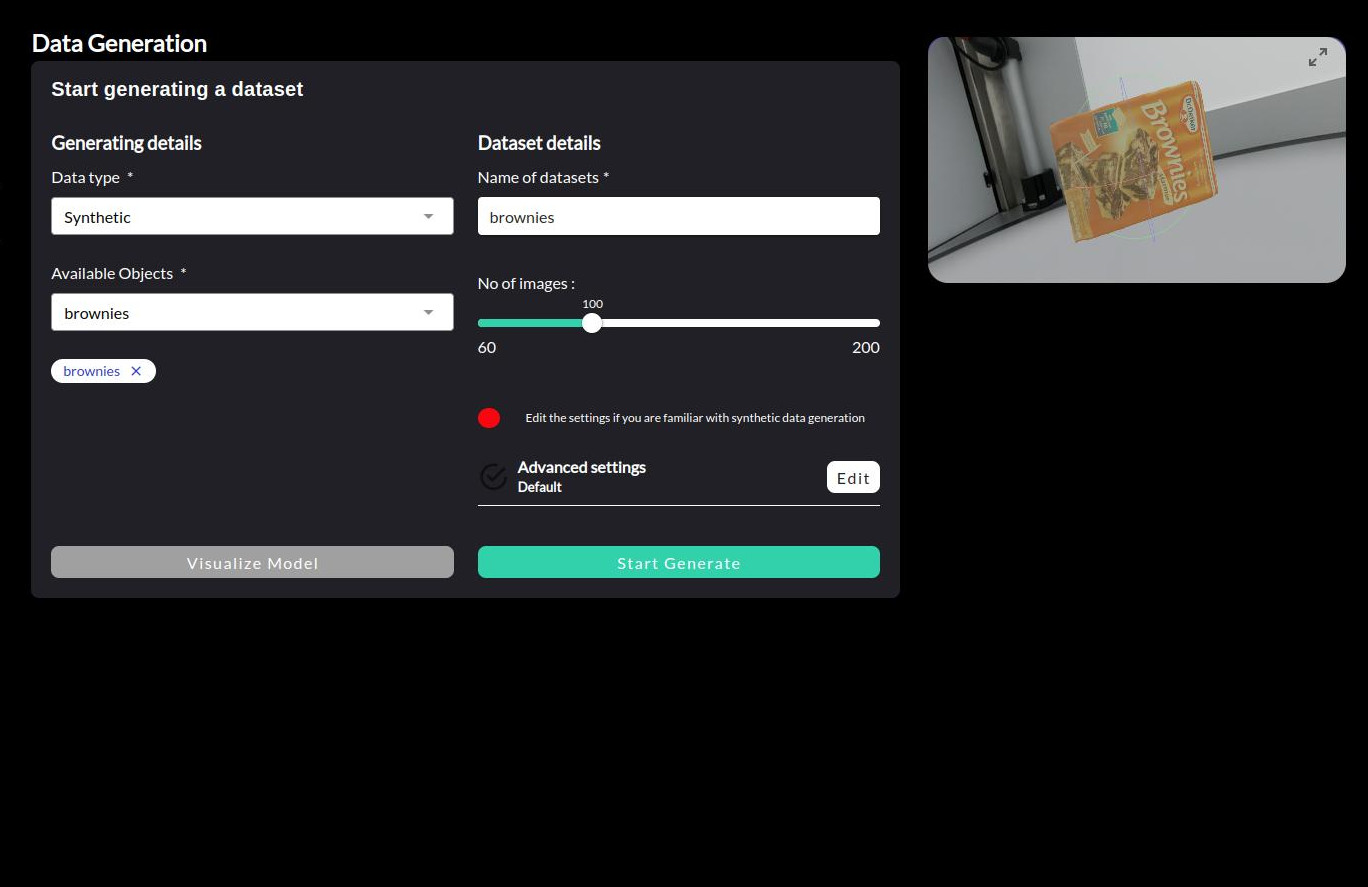
Select the type Synthetic from the Data type dropdown menu.
Select the object(s) you want to generate a dataset for from the list of registered objects in the Available Objects dropdown.
Hint
Click on to preview the last selected object in the right upper corner of the screen.
Provide a distinct name for the dataset in the Dataset Name field.
Specify the number of images to be generated in the Number of Images field. The number of images can be adjusted to suit your needs, but starting with around 100 images is a good approach.
Note
The more images you generate, the more diverse your dataset will be, which can improve the performance of your model. However, generating too many images can also lead to longer processing times and larger file sizes, so it’s important to find a balance that works for your specific use case.
To start the object generation, press the Start Generate button.
The progress bar should gradually fill up and some sample generated images would display. The generation process may take some time depending on the number of images selected.
Once the generation is complete, you will see a message indicating that the process has finished.
Successfully generated datasets can be found under > . Database search allows finding the generated dataset by the assigned name.
Video Guide
Note
The video is a demonstration of the generation process. The actual interface may differ slightly from the one shown in the video.