Collect Real Data
Follow this guide to learn how to collect real, live data using a robot that can be used in performing cognitive tasks.
Using the Real Data Collection Wizard
Note
What is Real Data Collection Wizard?
Using an external PC, access Maira GUI at http://192.168.2.14:8080 and switch to AI Hub Mode.
Click and a new tab to AI Dev Arena opens.
Click to open the wizard.
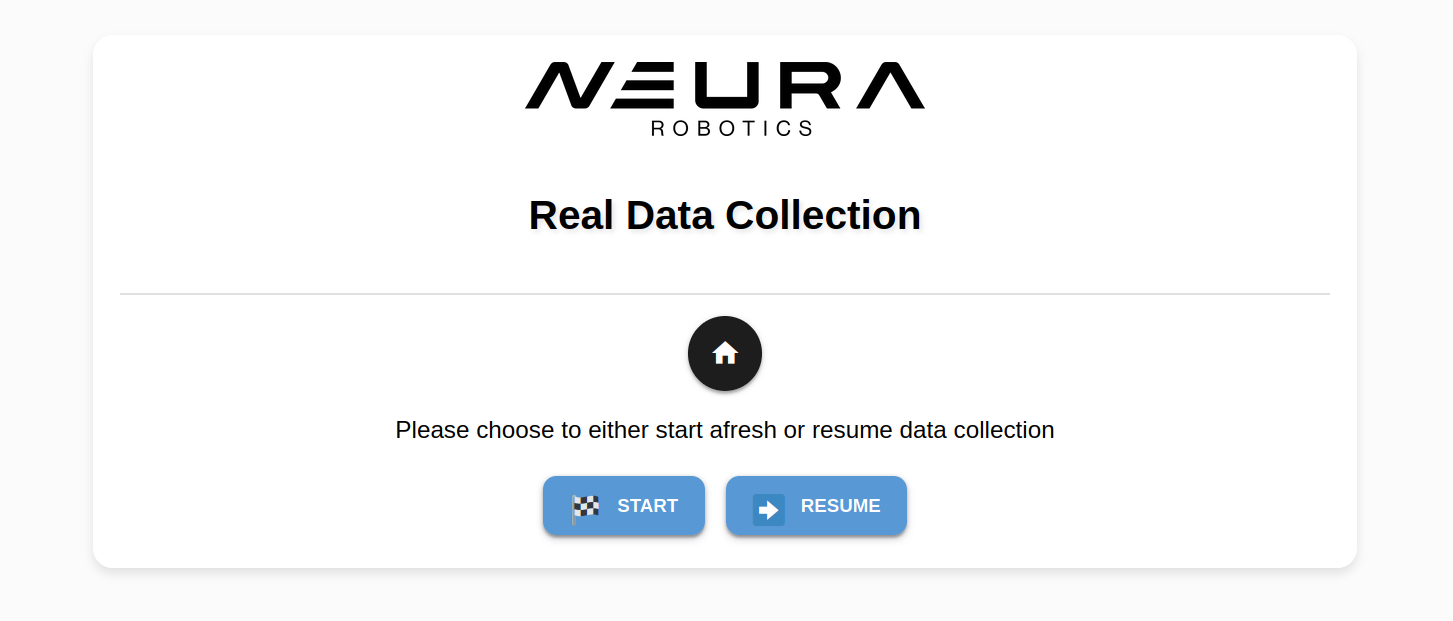
Press the Start button to begin capturing new images.
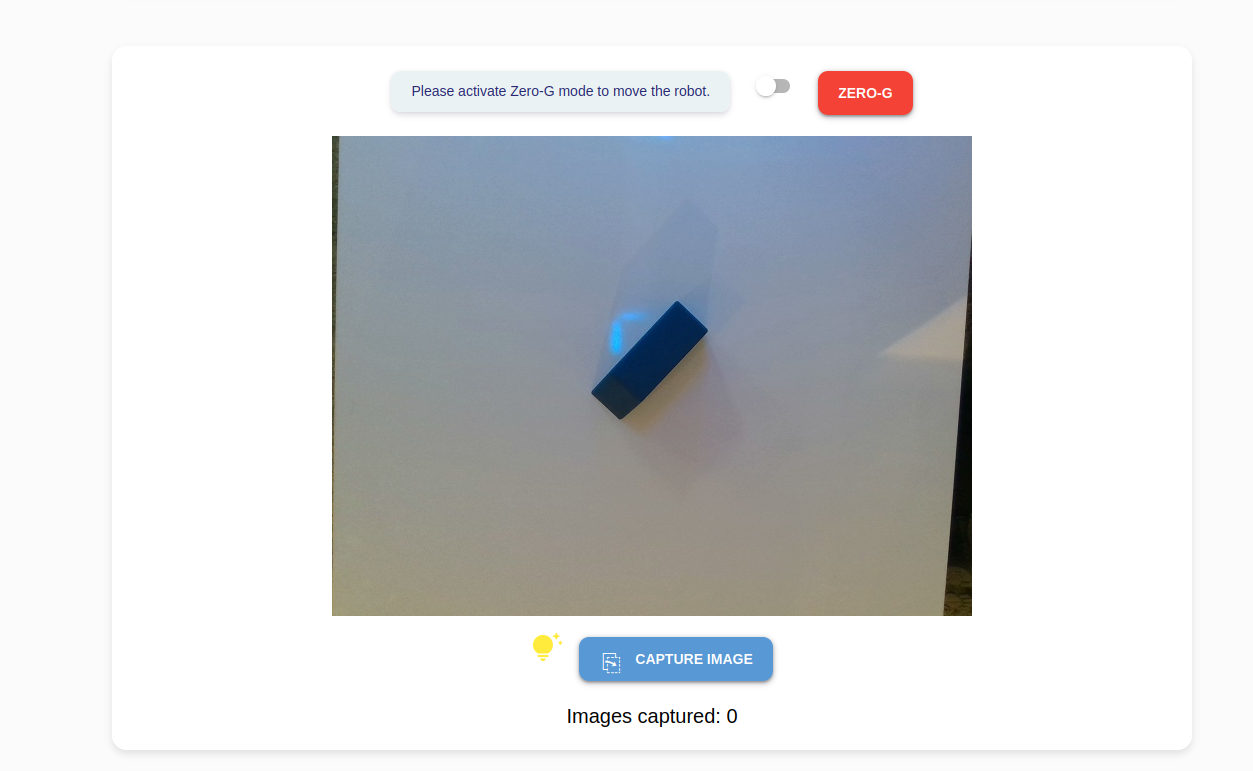
Place the objects of interest on your workspace. Click the Capture Image button to capture an image. There is an image counter on the bottom for your reference.
Hint
For better results, introduce variations e.g.,
capture images of the object in different orientations, backgrounds and lighting conditions.
capture images of an object from different angles by adjusting the robot’s position using ZeroG mode.
place the object at off-center positions in the camera view
introduce some occlusions to the object by placing other distractor objects in front of it.
Caution
To save a dataset, a minimum of 10 images is required.
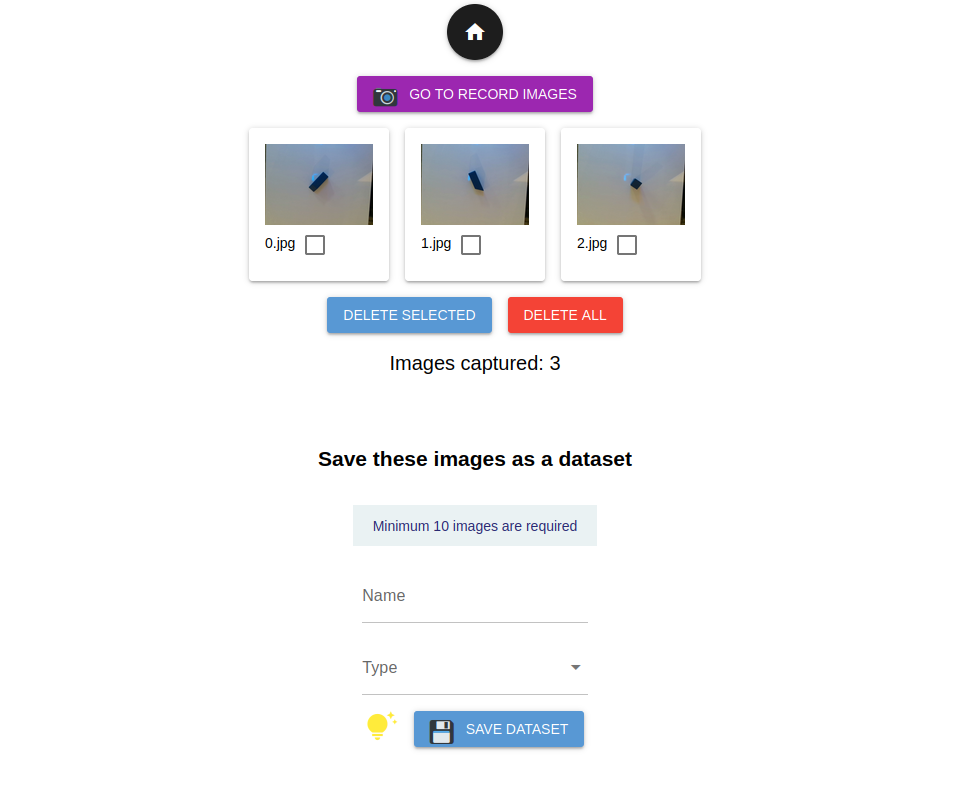
Click Go To View Images to review the collected images and delete any unwanted ones. To capture additional images, click Go To Record Images.
To save the dataset, simply enter a descriptive dataset name and select a suitable type. Click Save Dataset to save the dataset.
Type |
Description |
|---|---|
|
indicates that every image consists of objects of interest and is intended to be annotated using Neura CVAT. |
|
indicates that there are no objects of interest in the dataset. |
|
for images that will be used in the Object Onboarding Wizard. |
Note
If you saved a TO_LABEL type dataset, the following tutorial will guide you on
annotating the dataset using Neura CVAT.